
How to schedule a post on Facebook from the app or a computer, where to find scheduled posts and why a post will not schedule.
You can schedule a post on Facebook from a Page or from a profile in professional mode, using either the Facebook app or Meta Business Suite on a computer. Here are the steps for both, how to find your scheduled posts and what to check when a post won't schedule. The last section covers scheduling Facebook posts with sona.to.
Can you schedule posts on Facebook?
Yes, from a Page or from a profile with professional mode turned on. A regular personal profile doesn't have a scheduling option. According to Meta's help page, a Meta One plan (Advanced, Expert or Max) lets you schedule posts and reels up to a year (365 days) ahead and suggests times based on when your followers are most active.
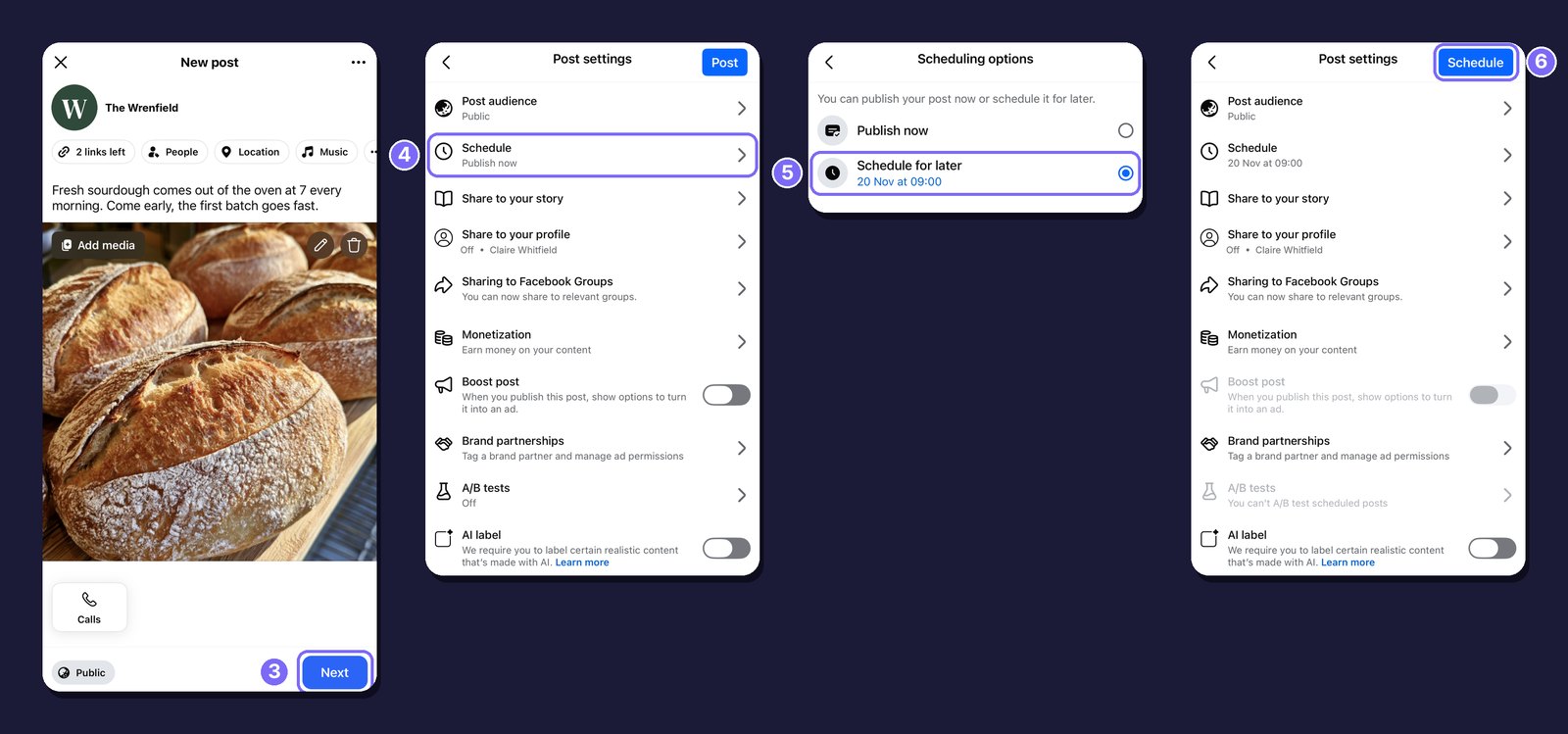
How to schedule a post in the Facebook app
1. Start the post. On your Page, tap What's on your mind?
2. Write the post. Add the text and your photos or videos.
3. Open Post settings. Tap Next.
4. Open the scheduling options. Tap Schedule, which shows Publish now until you change it.
5. Choose Schedule for later. Pick the date and time, then go back to Post settings.
6. Confirm. The button at the top now says Schedule. Tap it.
How to schedule a Facebook post from a computer
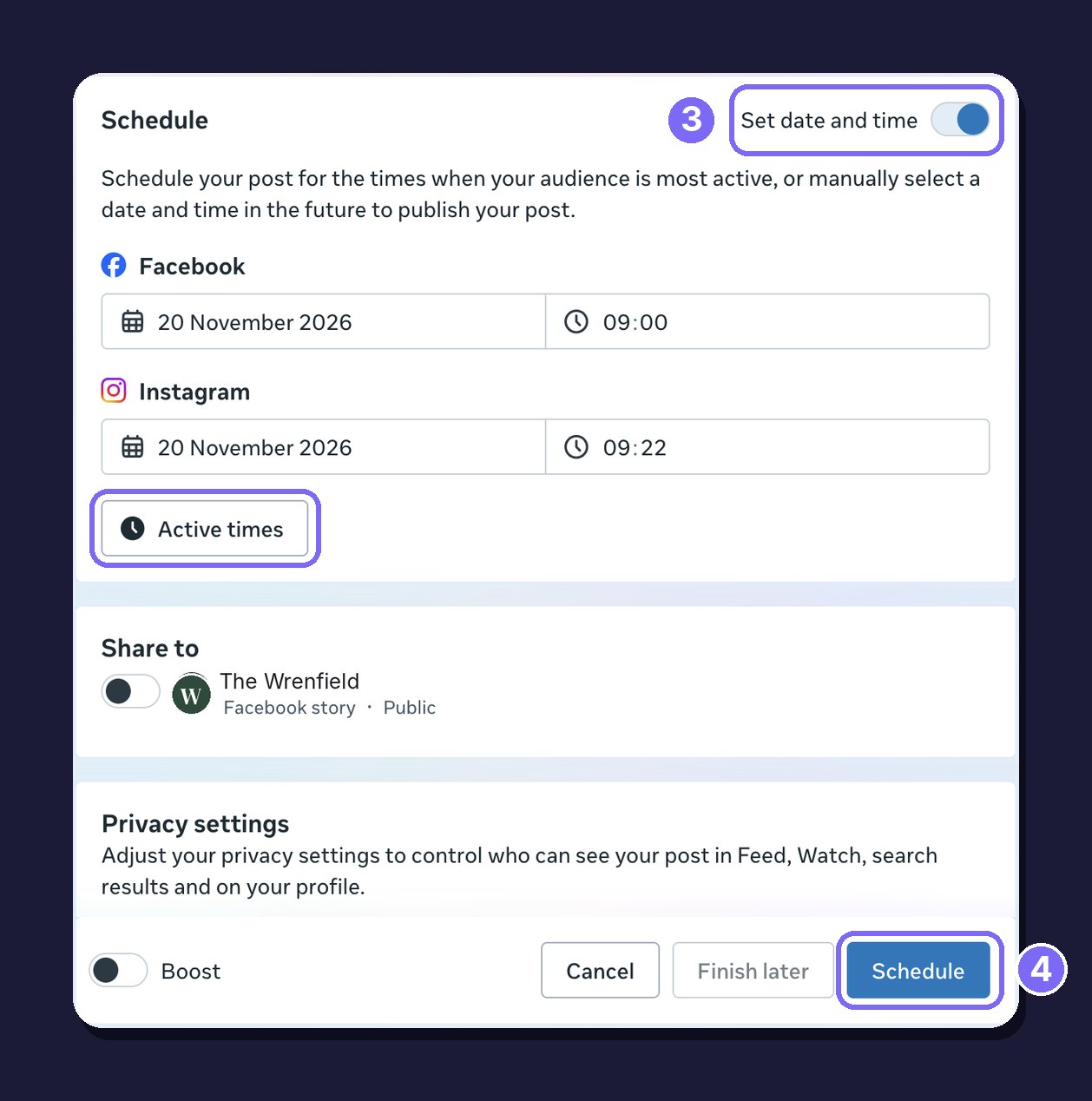
On a computer, go to Meta Business Suite at business.facebook.com and follow these steps:
1. Create the post. Click Create post and pick your Page. If your Instagram account is connected, you can post to both at once.
2. Add the text and media. Write the post and add your photos or videos.
3. Set the date and time. In the Schedule section, turn on Set date and time and pick a date and time. Active times shows when your audience is usually online.
4. Schedule. Click Schedule. The time must be at least 20 minutes and no more than 29 days away.
You can schedule stories the same way. Click Create story, add your photos or videos and choose Schedule instead of Share now. Then set the date and time and click Schedule.
Where to find your scheduled Facebook posts
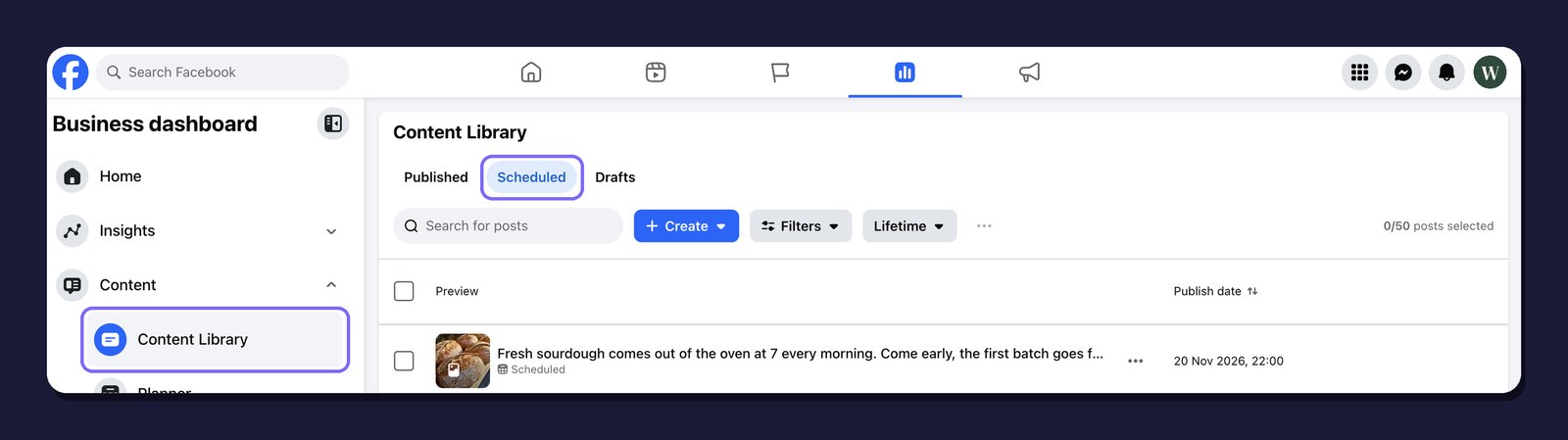
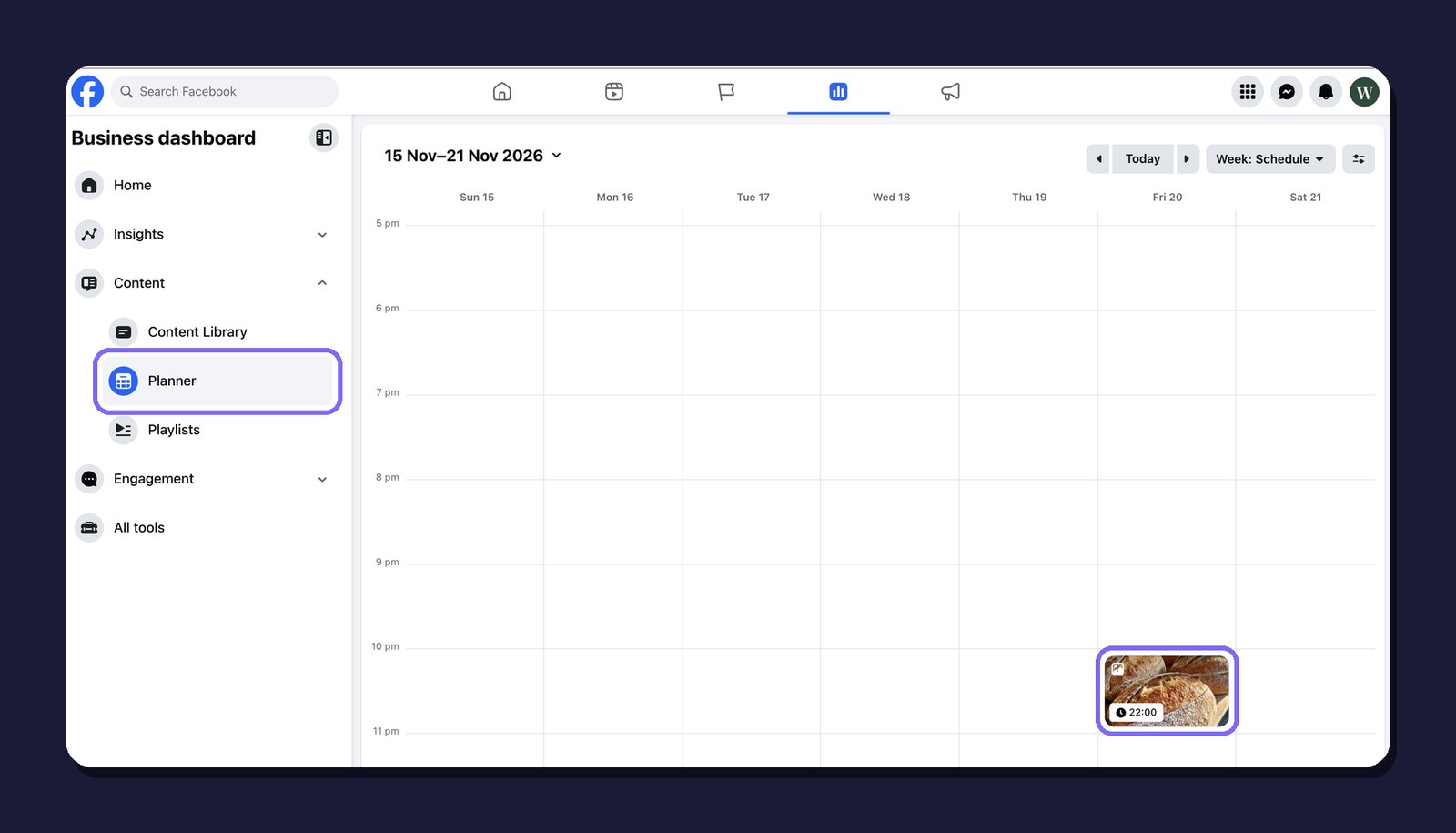
On a computer, open your Page on Facebook and go to Business dashboard, then Content. The Scheduled tab of Content Library lists each scheduled post with its publish date, and Planner shows the same posts on a calendar.
In Meta Business Suite, go to Content, then Posts and reels. Your scheduled posts are in the Scheduled tab.
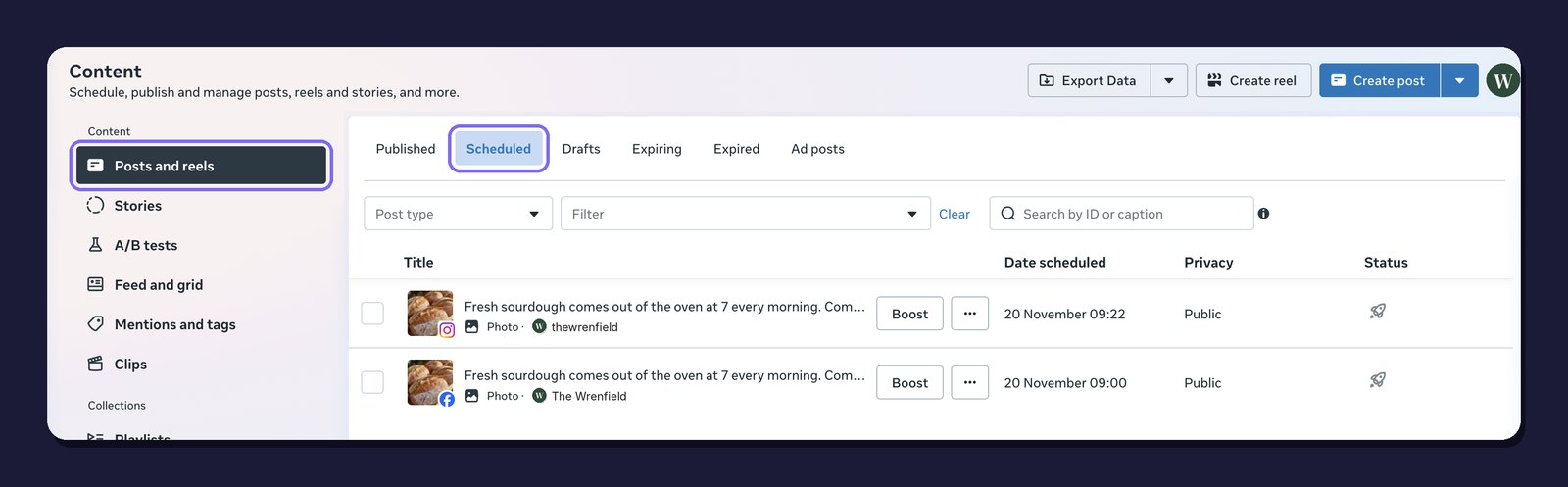
In the Facebook app, Meta's help page says to tap Manage posts on your Page. According to the same page, you change a scheduled post there by deleting it and creating it again.
Why you can't schedule a post on Facebook
If you can't find the option or the post won't save, check the following:
You're posting from a personal profile. You need a Page or a profile with professional mode turned on.
The time is too soon or too far out. In Business Suite it must be at least 20 minutes and no more than 29 days away.
Schedule Facebook posts with sona.to
If you also post on other networks or work with a team, the Facebook scheduler in sona.to keeps everything in one place. It posts to Facebook Pages.
Feed posts, reels and stories. Choose where the post goes. A feed post holds several photos or one video, but not both. A reel holds one video and a story holds one photo or video.
Facebook options. You can add a carousel of 2 to 5 links, a call to action button on a link post, a feeling, a video thumbnail, an earlier date shown on the post, an audience limited by country and age, a collaborator Page on a reel, the AI label and the paid partnership label.
Comments under the post. Click Add to thread and write a comment. As soon as the post goes live, sona.to posts the comment under it. Comments are text only.
The same post on several dates. Use Add more scheduled times to publish the post again on other dates, or Repeat to publish it every few days until an end date you choose.
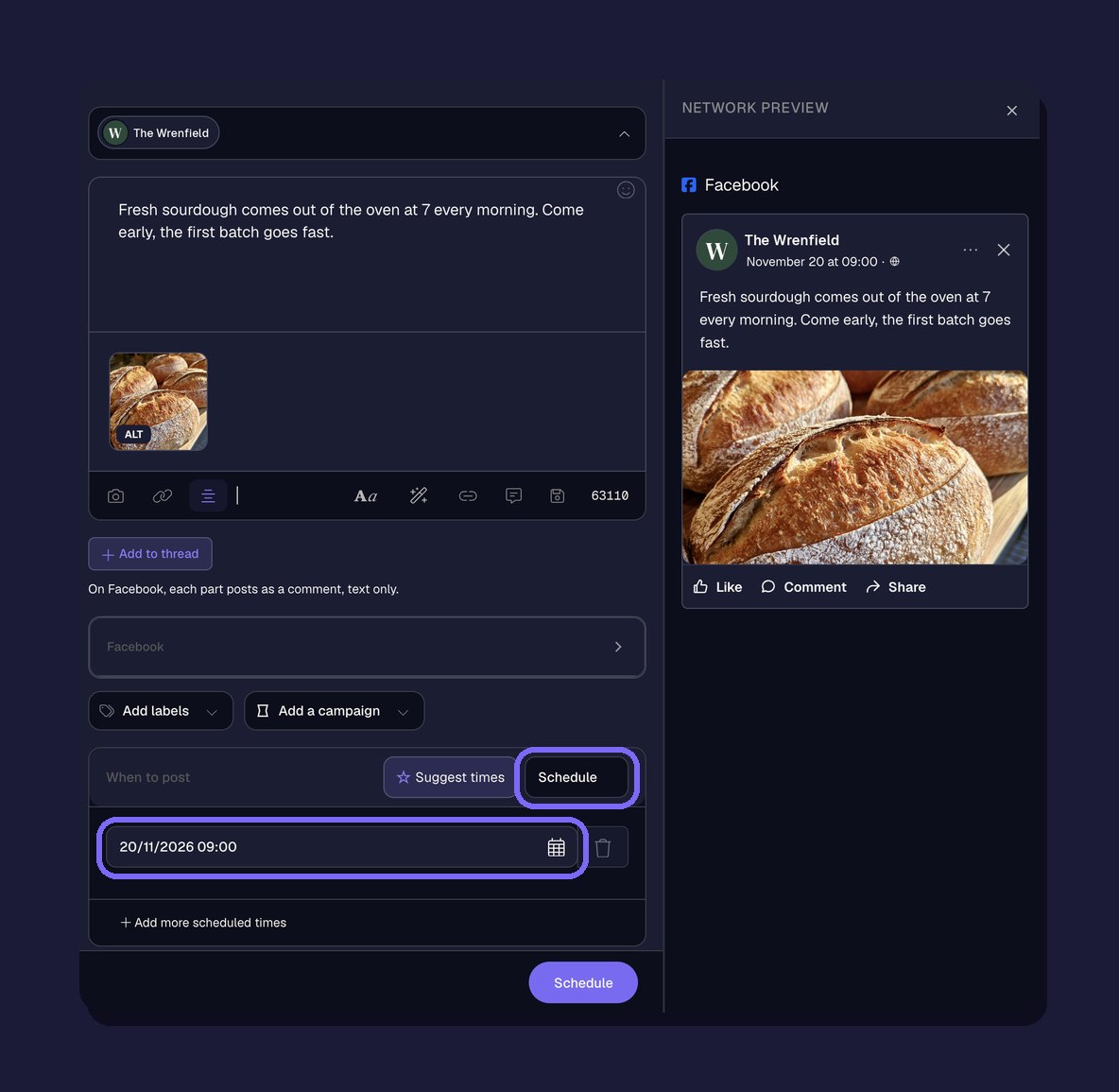
One calendar for every network. Send the same post to Instagram, X and your other channels at once. The calendar shows everything you've planned by month, by week or as a list, and you can edit any post until it goes out. To plan many posts at a time, see bulk scheduling from a CSV file.
Prepare the post before you schedule
A scheduled post goes out without anyone looking at it, so check it beforehand. The Facebook font generator turns words bold or italic and the Facebook image size guide lists the right dimensions for each format.
Frequently asked questions
Can you schedule posts on a personal Facebook profile?
Only with professional mode turned on. Meta's help page covers scheduling from a Page or from a profile in professional mode.
How far in advance can you schedule Facebook posts?
In Meta Business Suite, anywhere from 20 minutes to 29 days ahead. With a Meta One plan (Advanced, Expert or Max), Meta's help page says you can go up to a year (365 days).
Can you edit a scheduled Facebook post?
In the Facebook app, Meta's help page says to delete it from Manage posts and create it again. In sona.to, open the post in the calendar and edit it any time before it goes out.
Can I schedule the same post on Facebook and Instagram?
Yes. Both Meta Business Suite and sona.to can send one post to Facebook and Instagram at the time you choose. With sona.to you can also add X and your other channels.
Ready to try it?
Free to start, no credit card required.


