
How to schedule a tweet on X from x.com or the X app, step by step, where to find scheduled posts and how to schedule threads.
You can schedule a tweet on x.com or in the X app. Write the post, pick a date and time and X sends it for you. Here are the steps for both, how to find your scheduled posts and how to schedule threads with sona.to.
Can you schedule tweets on X?
Yes. The composer on x.com and the one in the X app both have a Schedule option. On x.com you can schedule up to 18 months ahead. If you pick a later date, X tells you that you can't schedule a post more than 18 months in the future.
How to schedule a tweet on x.com
1. Write the post. Open the composer, write your text and add a photo or video.
2. Open Schedule. Click the Schedule icon (a calendar with a clock) in the bar under the post.
3. Pick the date and time. Choose the month, day, year, hour and minute. The window shows the time zone and the exact time the post will be sent.
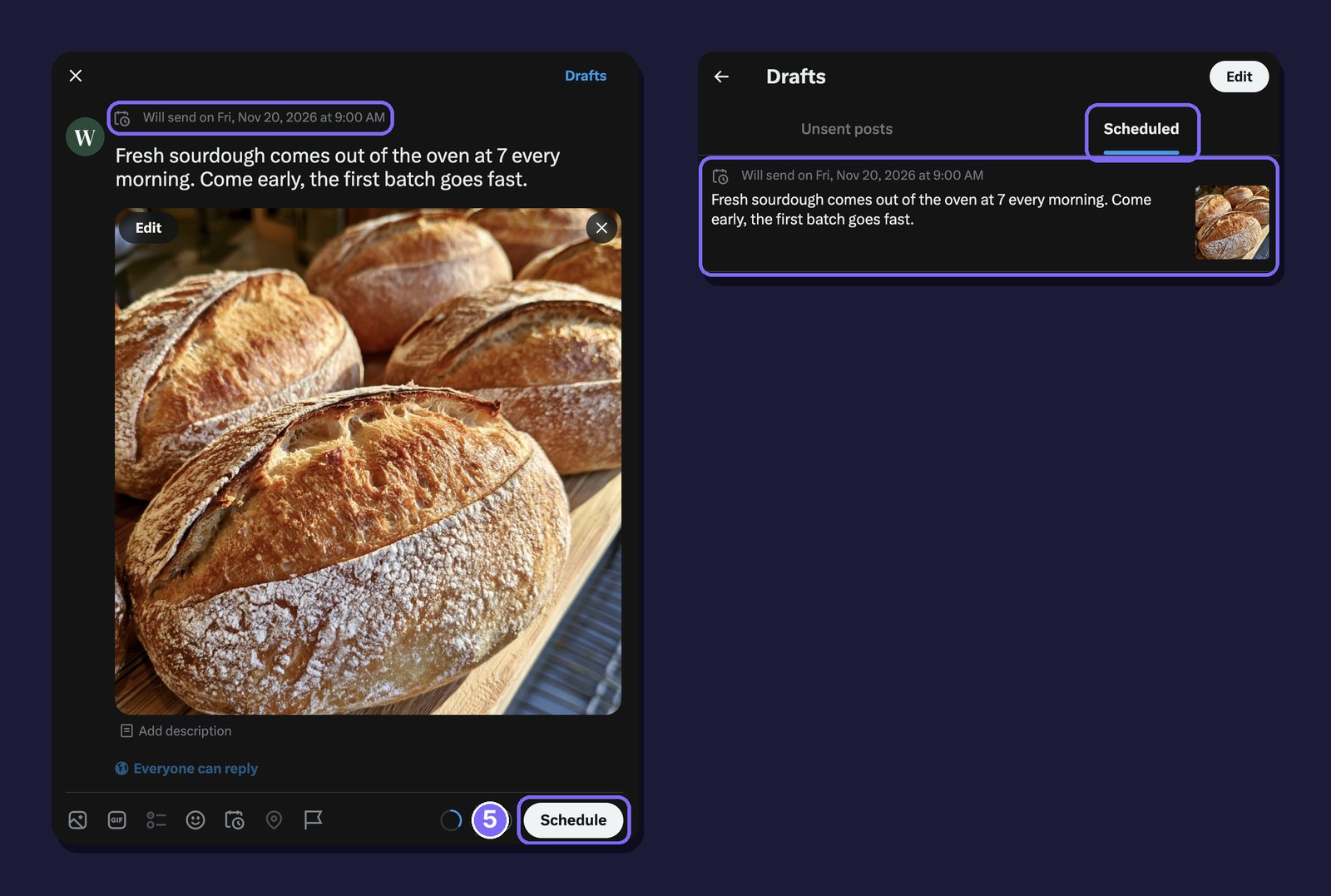
4. Confirm. Click Confirm. Back in the composer, the line above your text shows when the post will be sent.
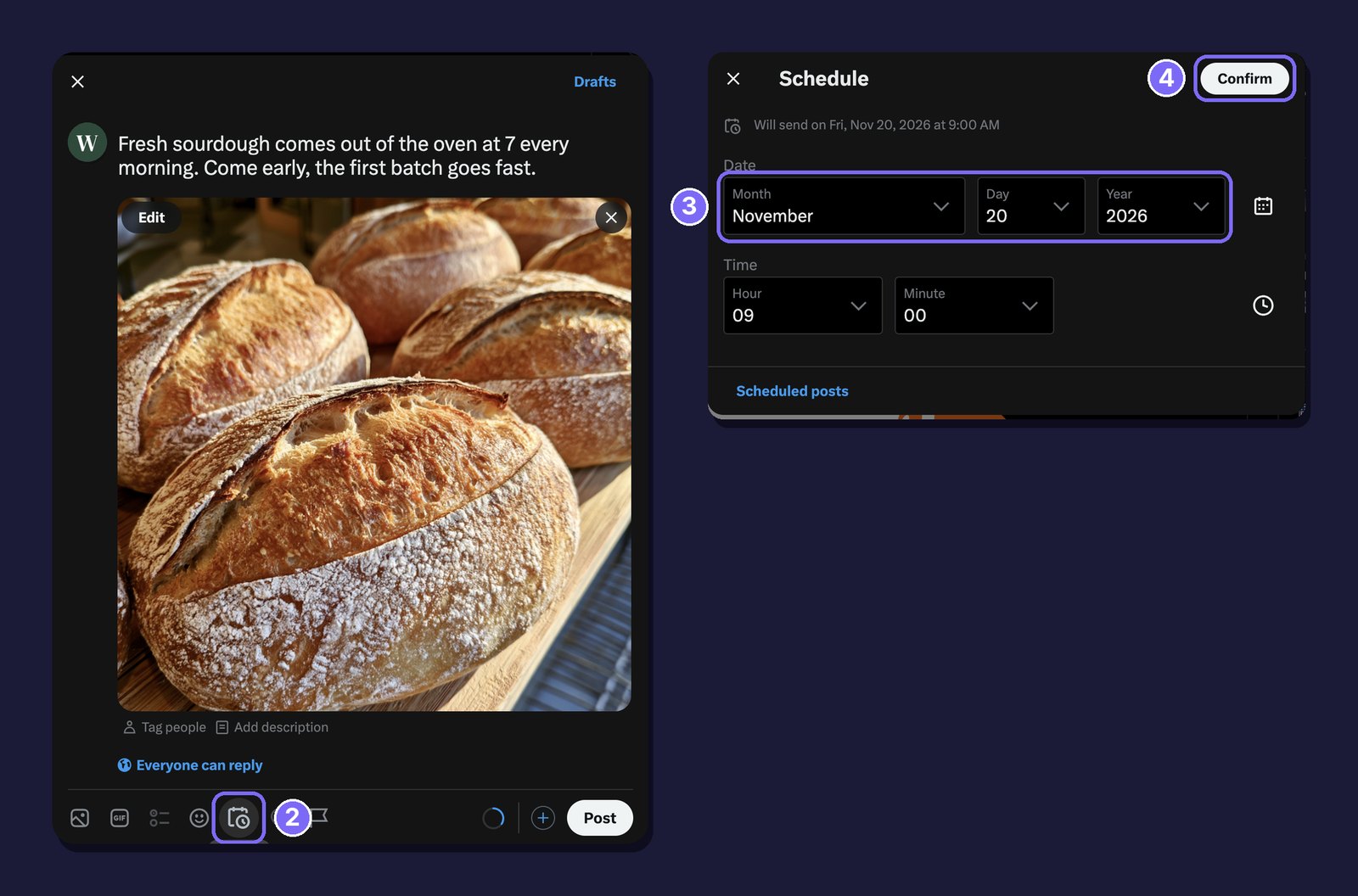
5. Schedule. The Post button now says Schedule. Click it.
How to schedule a tweet in the X app
1. Write the post. Open the composer, write your text and add a photo or video.
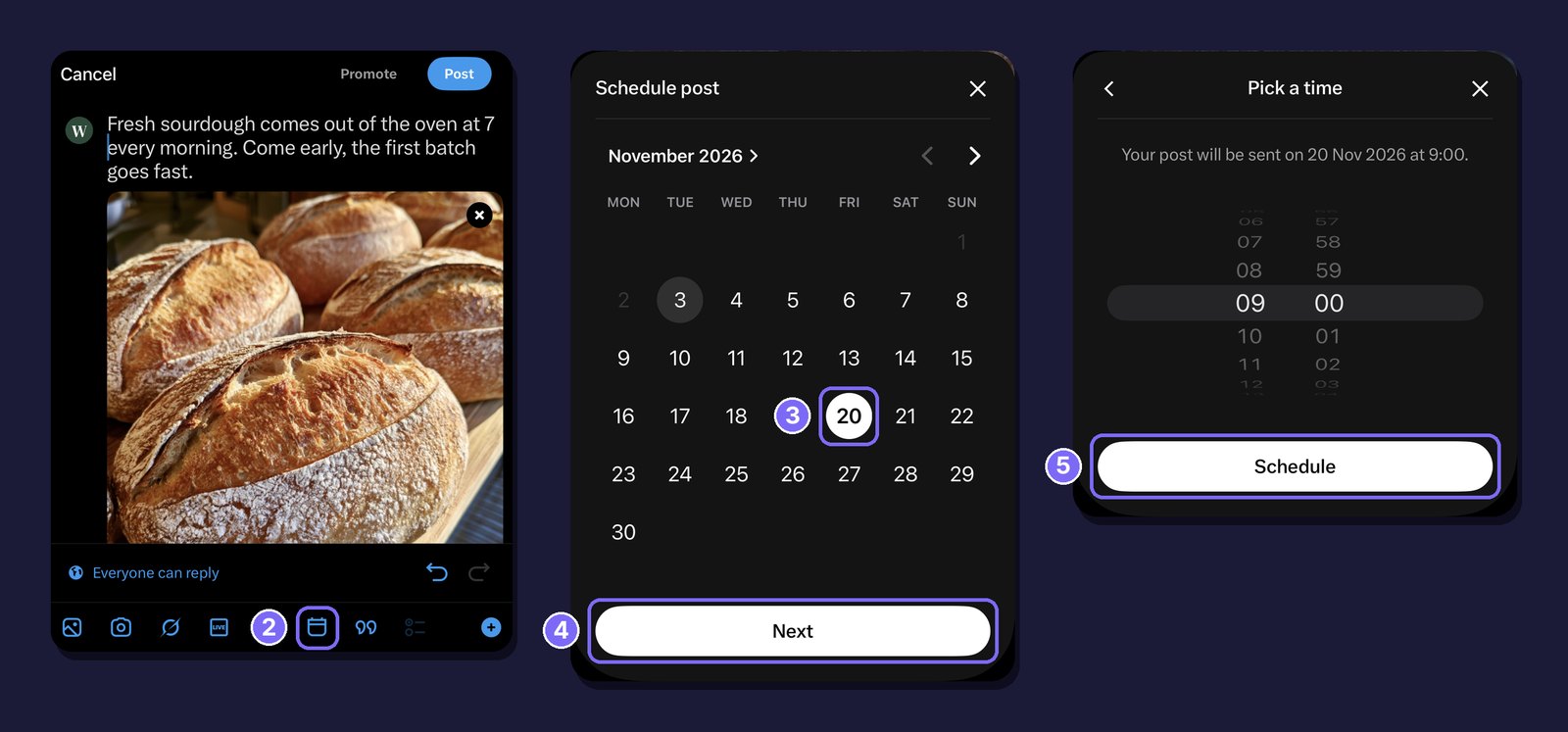
2. Open the calendar. Tap the calendar icon in the bar above the keyboard.
3. Pick the day. On the Schedule post screen, tap the day.
4. Go to the time. Tap Next.
5. Pick a time. Set the hour and minute, check the send time shown on screen and tap Schedule.
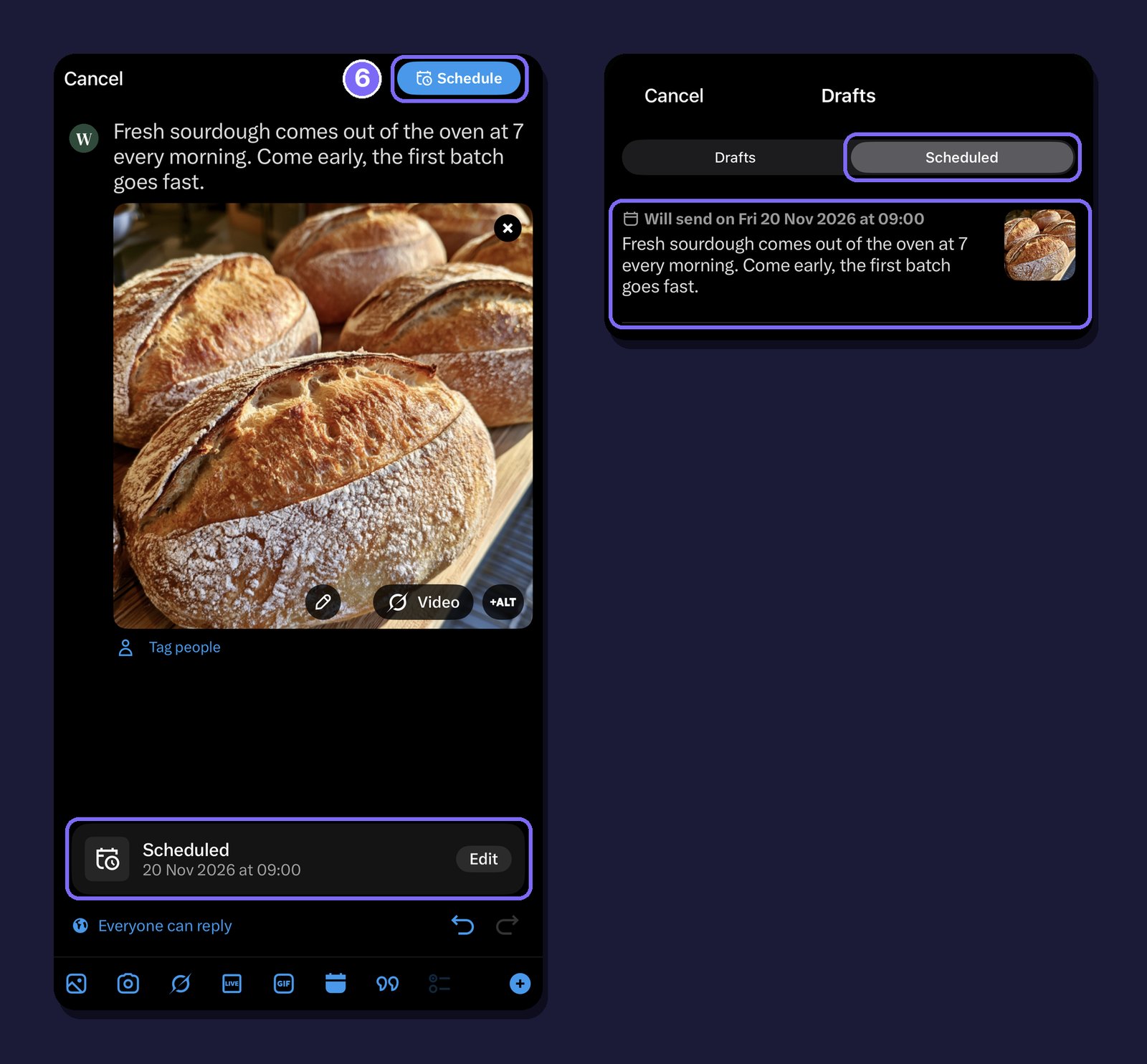
6. Confirm. The composer now shows the scheduled date with an Edit button, and the button at the top says Schedule. Tap it.
Where to find your scheduled tweets
On x.com, click the Schedule icon in the composer, then Scheduled posts at the bottom of the window. Drafts opens with two tabs: Unsent posts and Scheduled. Each scheduled post shows when it will be sent.
In the X app, open the composer and tap Drafts, then Scheduled.
Schedule tweets with sona.to
If you also post on other networks or work with a team, the X (Twitter) scheduler in sona.to keeps everything in one place.
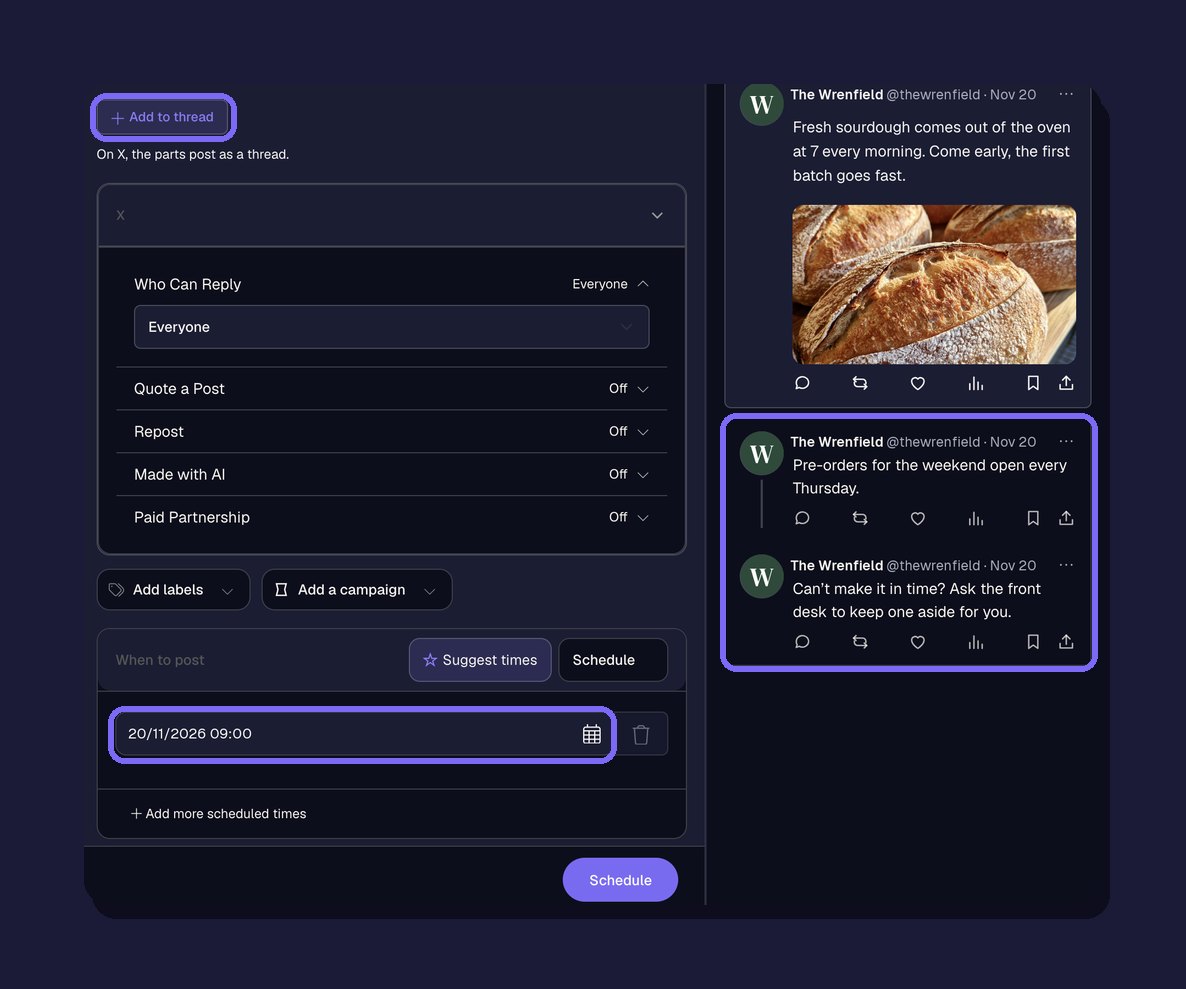
Threads. Click Add to thread and write the next posts. At the scheduled time, sona.to publishes the whole thread, with each post replying to the one before it.
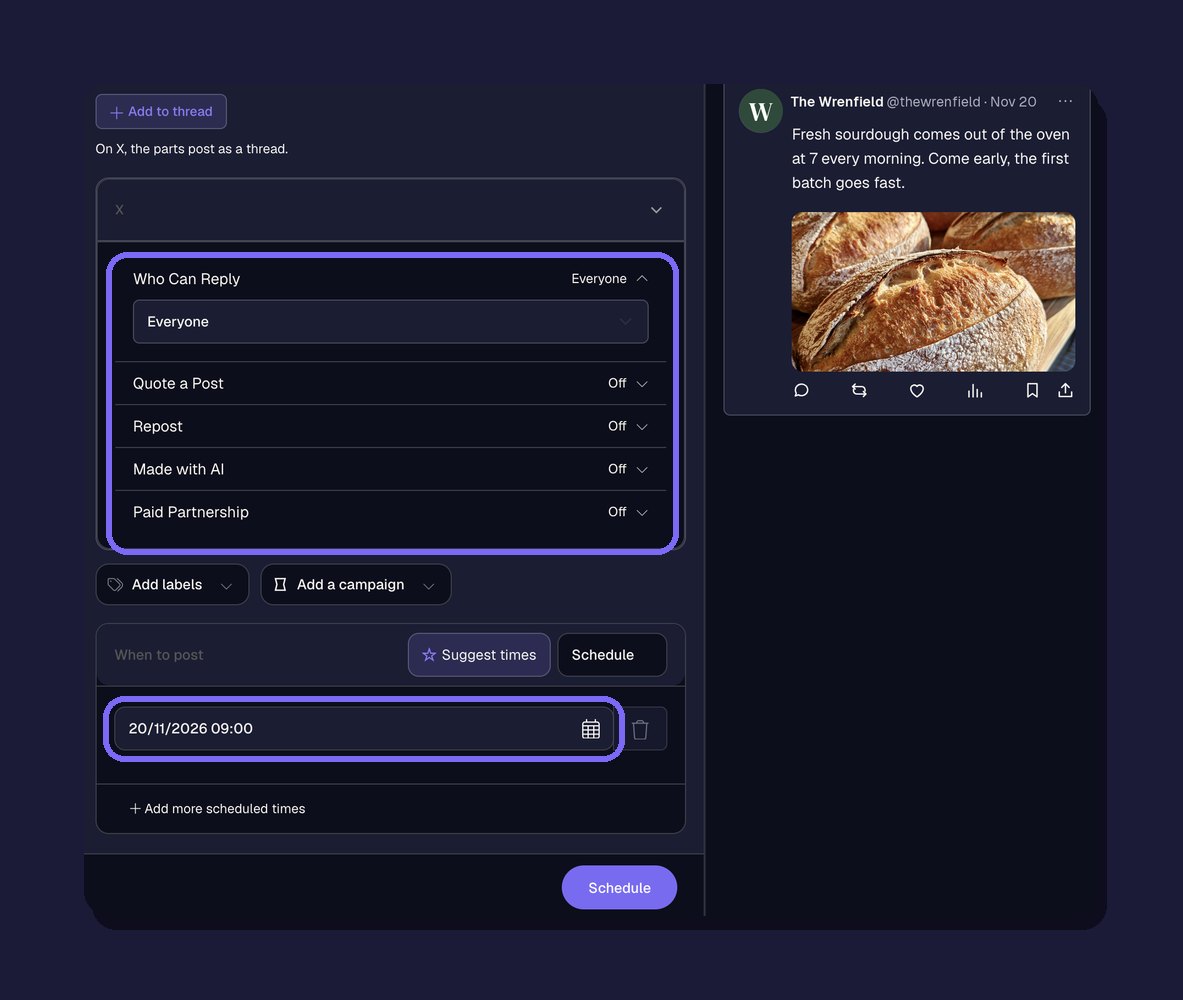
X options. Choose who can reply and add a poll with two to four options and a duration. You can also quote or repost another post, or add the Made with AI or paid partnership label.
The right length. The character count follows your account's limit: 280 characters, or more with X Premium.
The same post on several dates. Use Add more scheduled times to publish the post again on other dates, or Repeat to publish it every few days until an end date you choose.
One calendar for every network. Send the same post to Instagram, Facebook and your other channels at once. The calendar shows everything you've planned by month, by week or as a list, and you can edit any post until it goes out. To plan many posts at a time, see bulk scheduling from a CSV file.
Check the tweet before you schedule
A scheduled post goes out without anyone looking at it, so check it beforehand. The character counter shows how many characters you have left. The X font generator turns words bold or italic and the X header size guide gives the right dimensions for your profile.
Frequently asked questions
How far in advance can you schedule a tweet?
Up to 18 months ahead on x.com.
Can you schedule a tweet from your phone?
Yes. In the X app, tap the calendar icon in the composer, pick the day and time, then tap Schedule.
Where do scheduled tweets go?
To the Scheduled tab in Drafts, both on x.com and in the app.
Can I schedule a thread?
Yes, in sona.to. Click Add to thread and write the next posts. The whole thread goes out at the time you choose.
Ready to try it?
Free to start, no credit card required.


