
How to schedule a post on Instagram from the app or a computer, where to find scheduled posts and why a post will not schedule.
You can schedule a post on Instagram from the Instagram app, from instagram.com on a computer, from Meta Business Suite or from a scheduling tool such as sona.to. In the app, any public account can schedule reels, photos and carousel posts up to 30 days ahead. Here are the steps for each method, how to find your scheduled posts and what to check when a post won't schedule.
Can you schedule posts on Instagram?
Yes, as long as your account is public. Private accounts can't schedule. You can schedule reels, photos and carousel posts, up to 25 a day and up to 30 days ahead. A Meta One plan (Advanced, Expert or Max) extends that to a year (365 days).
How to schedule a post in the Instagram app
1. Start a post. Tap Create in the top left, or swipe right from your feed, then tap Post or Reel.
2. Add your photo or video. Select it and tap Next.
3. Write the caption. Add effects or filters if you like, the same way you would for any other post.
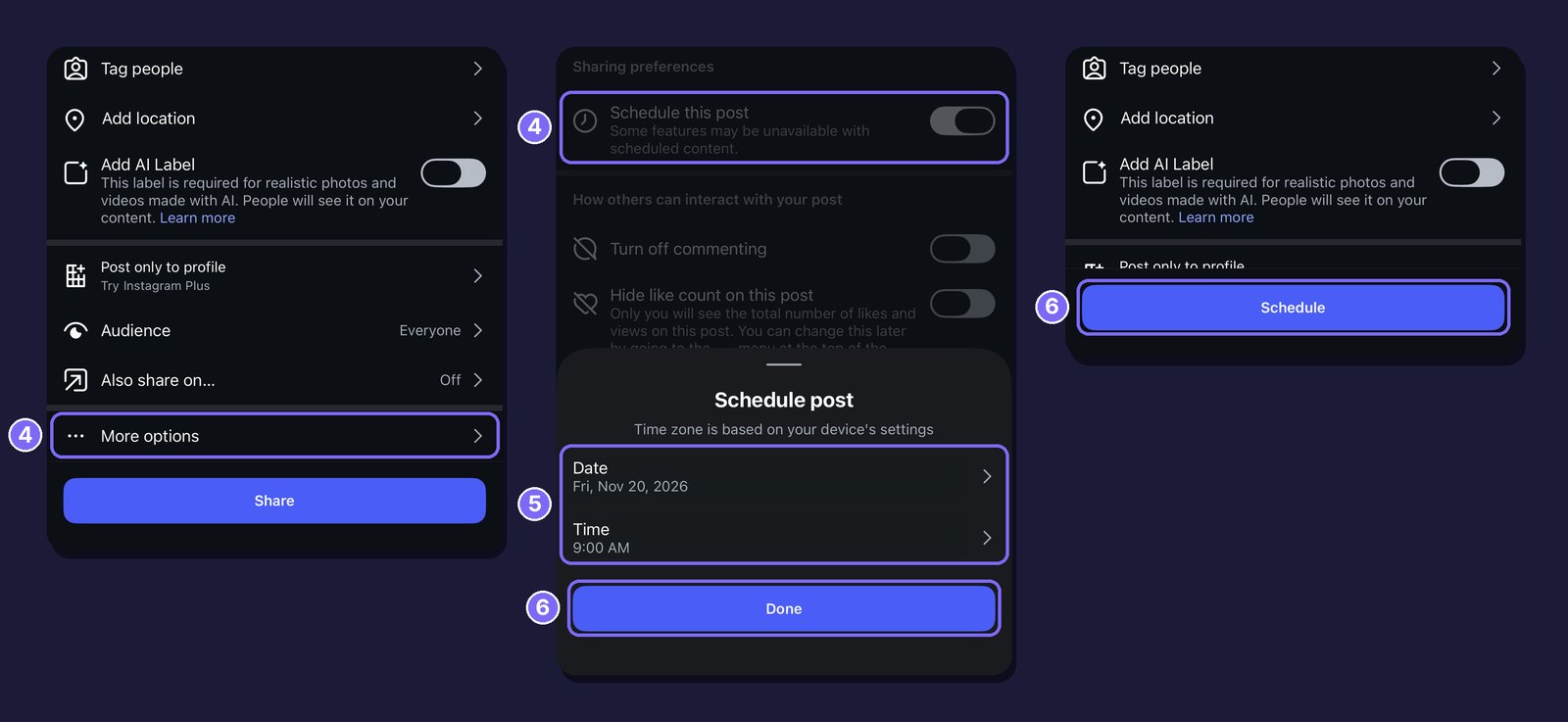
4. Turn on scheduling. Tap More options, then turn on Schedule this post (or Schedule this reel if you're posting a reel).
5. Pick the date and time. Choose when the post should go out. Under the time, Follower active times shows when your followers were most active over the last 28 days.
6. Confirm. Tap Done, then Back, then Schedule.
How to schedule an Instagram post from a computer
On a computer, you can schedule posts and reels on instagram.com, up to a month in advance:
1. Start a post. Click Create, then Post, and add your photo or video. Click Next until you reach the caption.
2. Write the caption. Add your text.
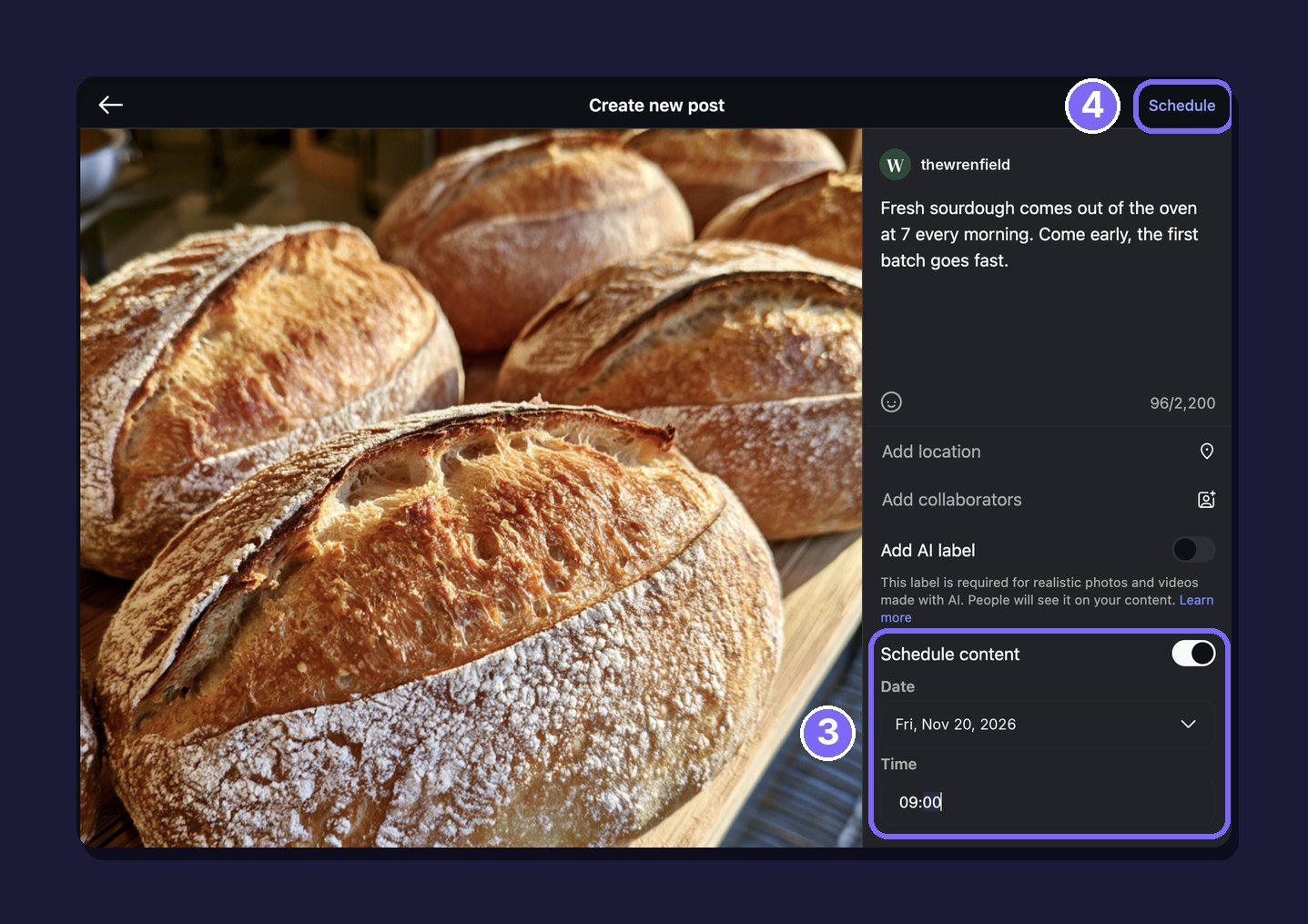
3. Turn on scheduling. Turn on Schedule content, then pick the date and time.
4. Schedule. Click Schedule in the top right.
How to schedule Instagram and Facebook together in Meta Business Suite
To publish the same post on Instagram and your Facebook Page, or to schedule a story, use Meta Business Suite. Connect your Instagram account to it, then go to business.facebook.com:
1. Create the post. Click Create post and pick your Instagram account. Select your Facebook Page as well if you want the post to go to both.
2. Add the caption and media. Write the caption and add your photos or video.
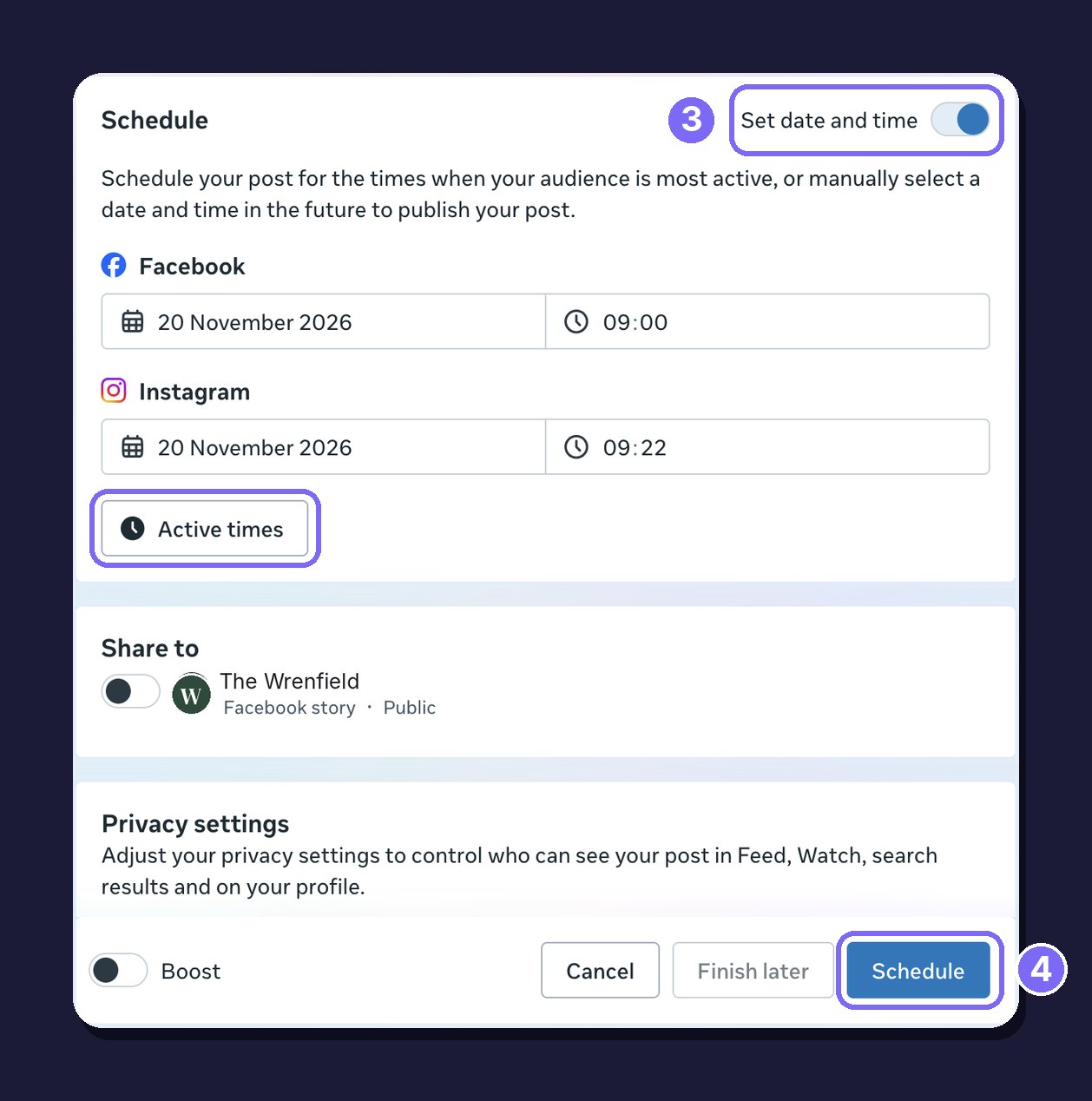
3. Set the date and time. In the Schedule section, turn on Set date and time and pick a date and time for each account. Active times shows when your audience is usually online.
4. Schedule. Click Schedule. The time must be at least 20 minutes and no more than 29 days away.
You can schedule stories the same way. Click Create story, add up to 10 photos or videos and choose Schedule instead of Share now. Then set the date and time and click Schedule.
Where to find your scheduled Instagram posts
In the Instagram app
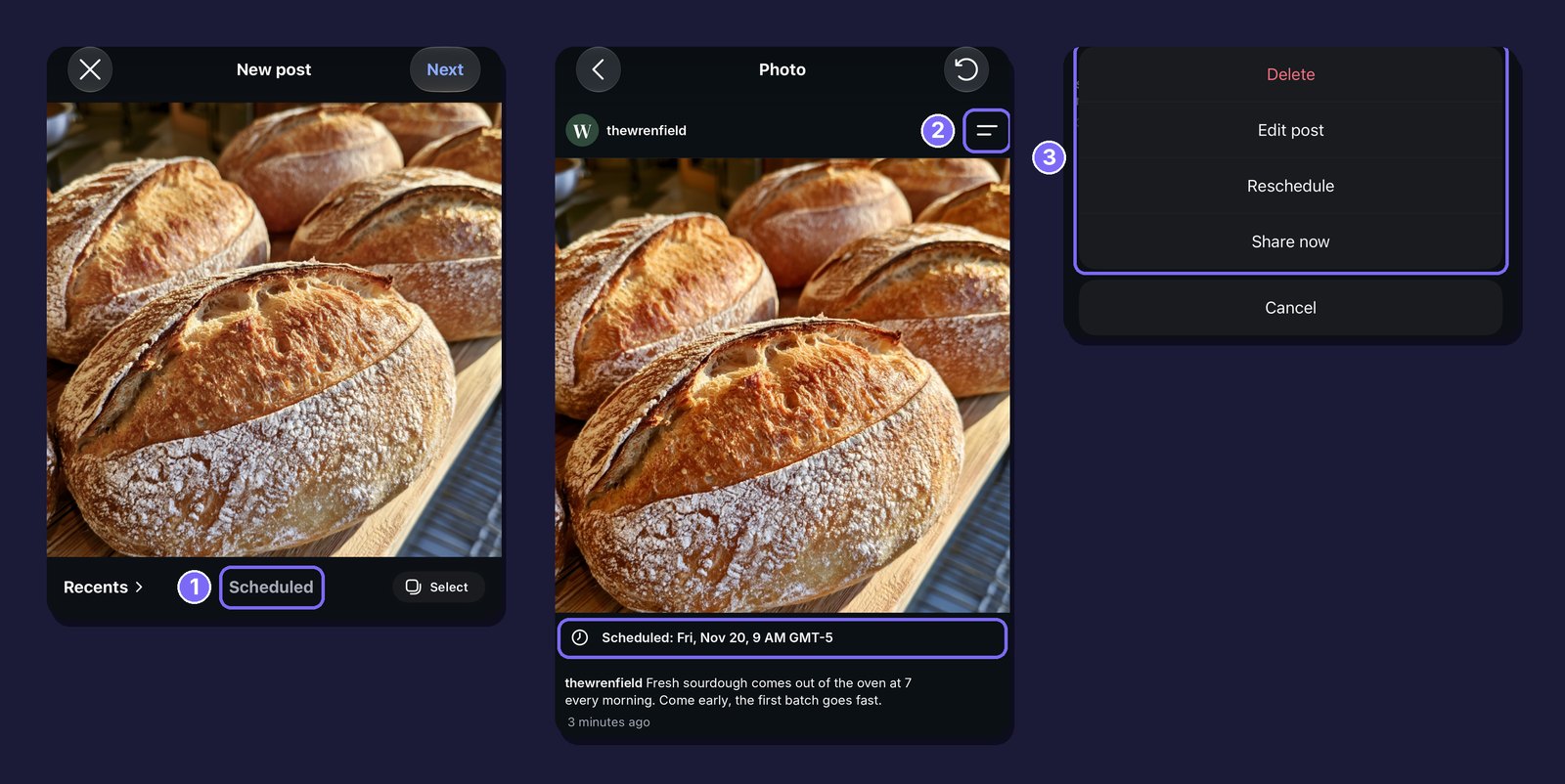
1. Open the list. tap Create, then Post, then Scheduled below the preview.
2. Open the post. Tap the post, then Options in the top right.
3. Choose what to do. You can pick Delete, Edit post, Reschedule or Share now.
You can also get to the list from your profile. Tap Menu, type "Scheduled" in the Settings and activity search bar, then tap Scheduled content.
On instagram.com
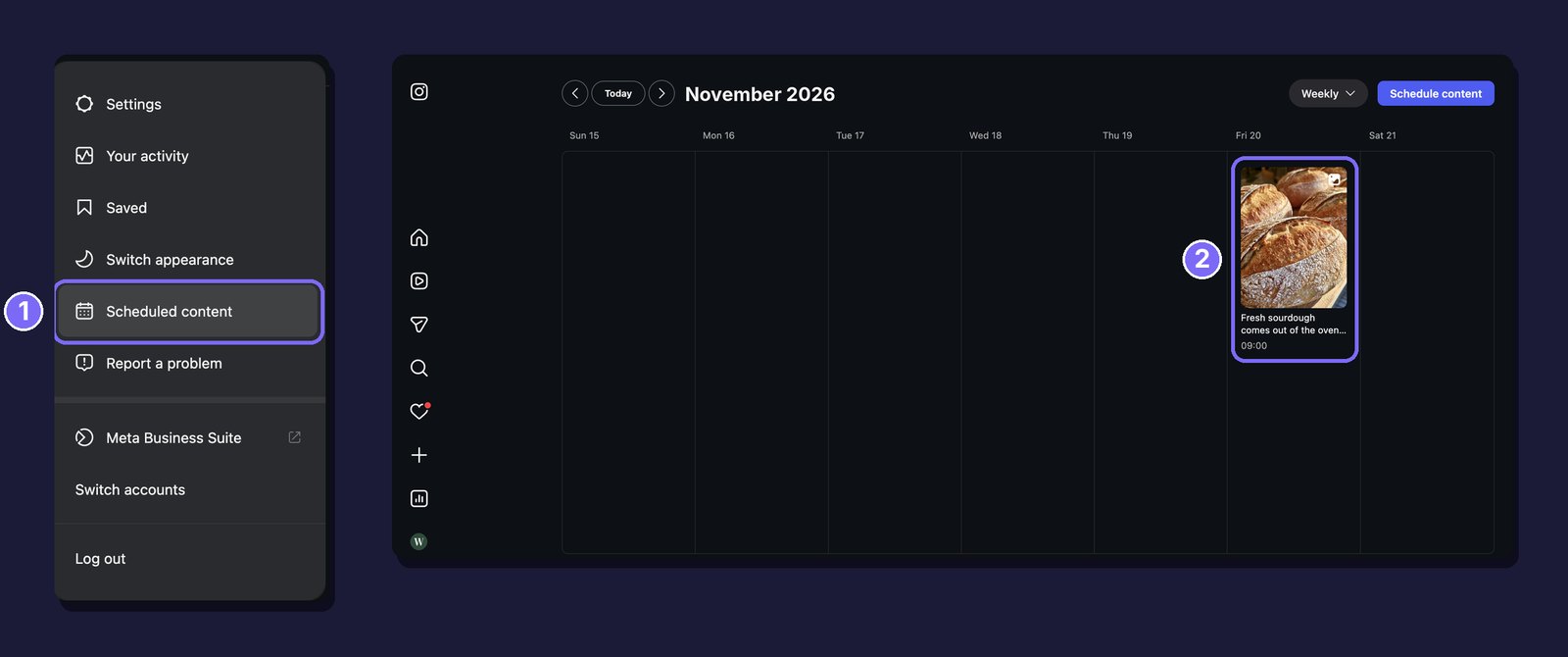
1. Open the list. Click More at the bottom of the menu, then Scheduled content.
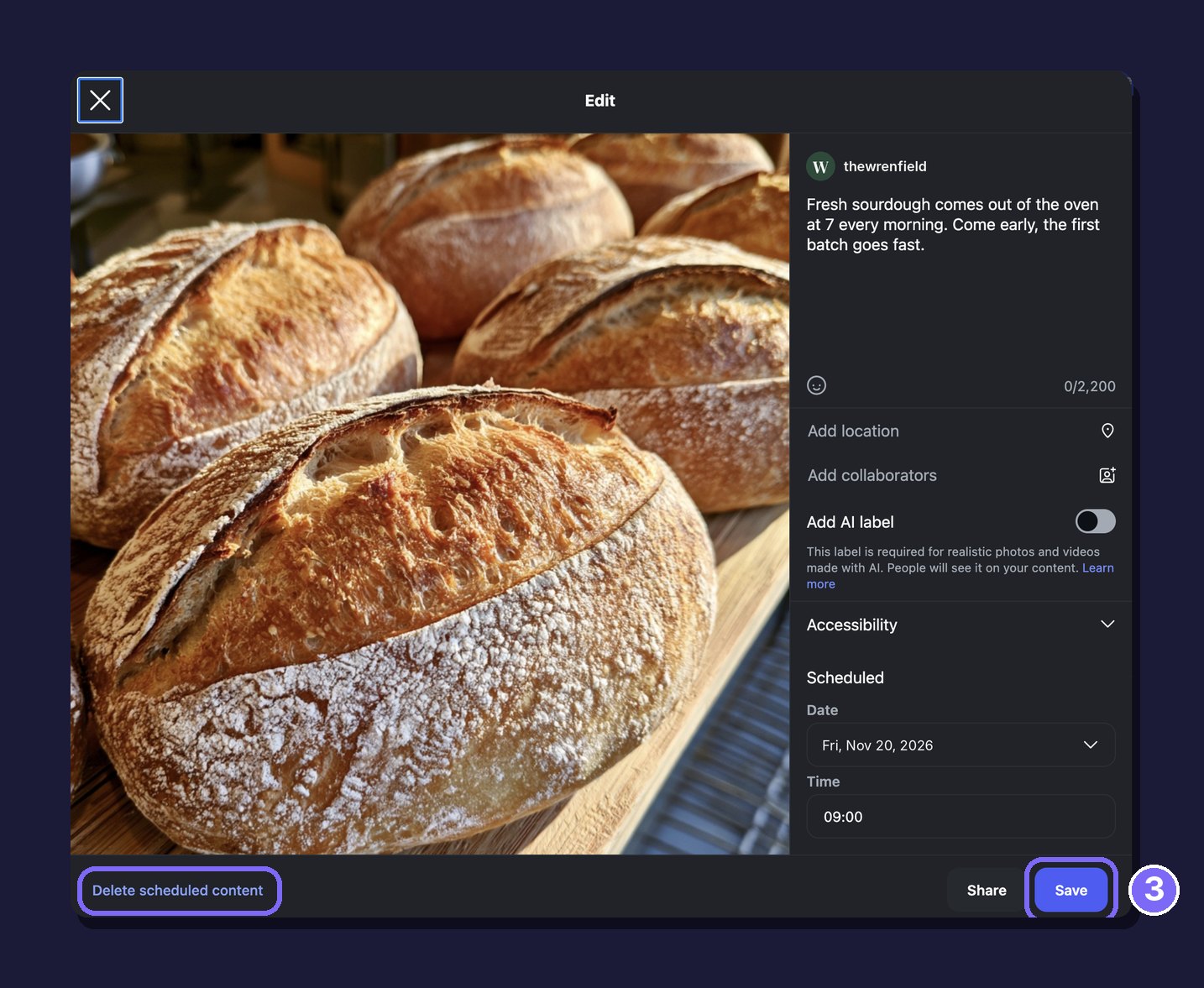
2. Open the post. Your scheduled posts and reels are shown on a calendar. Click the one you want to change.
3. Change or delete it. Edit the caption, the date or the time and click Save, or click Delete scheduled content.
In Meta Business Suite
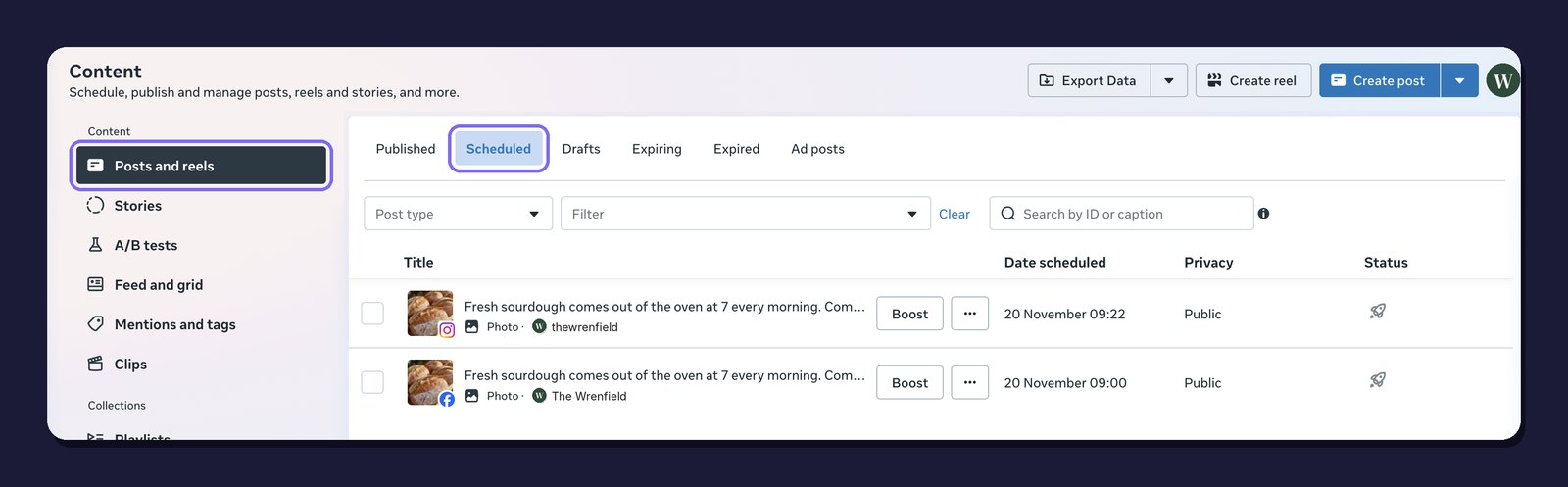
Go to Content, then Posts and reels. Your scheduled posts are in the Scheduled tab.
Why you can't schedule a post on Instagram
If you can't find the option or the post won't save, check the following:
Your account is private. Only public accounts can schedule.
The date is too far out or too soon. The app allows up to 30 days ahead, instagram.com up to a month and Business Suite up to 29 days, or a year with a Meta One plan. In Business Suite the post also has to be at least 20 minutes away.
You hit the daily limit. Instagram lets you schedule up to 25 posts a day.
The post uses a feature that can't be scheduled. Instagram's help page lists product tags, collaborative posts, sponsored posts and fundraisers as not compatible with scheduled content. Remove them or publish the post by hand at the time you want. To schedule a post with collaborators, use sona.to: it publishes the post through Instagram's API at the time you set, so this limit does not apply.
Schedule Instagram posts with sona.to
If you also post on other networks or work with a team, the Instagram scheduler in sona.to keeps everything in one place. It works with professional accounts (business or creator).
Feed posts, reels and stories. Choose where the post goes. A feed post holds up to 10 photos and videos, a reel holds one video and a story holds one photo or video. As on Instagram, stories have no caption.
Collaborators and tags. In sona.to you can invite up to 3 collaborators, tag people, add the paid partnership or AI label and write alt text for each photo. The post still goes out at the scheduled time.
A first comment. Click Add to thread and write a comment. As soon as the post goes live, sona.to posts the comment under it. Anything you add after that comment is posted as a reply to it.
The same post on several dates. Use Add more scheduled times to publish the post again on other dates, or Repeat to publish it every few days until an end date you choose.
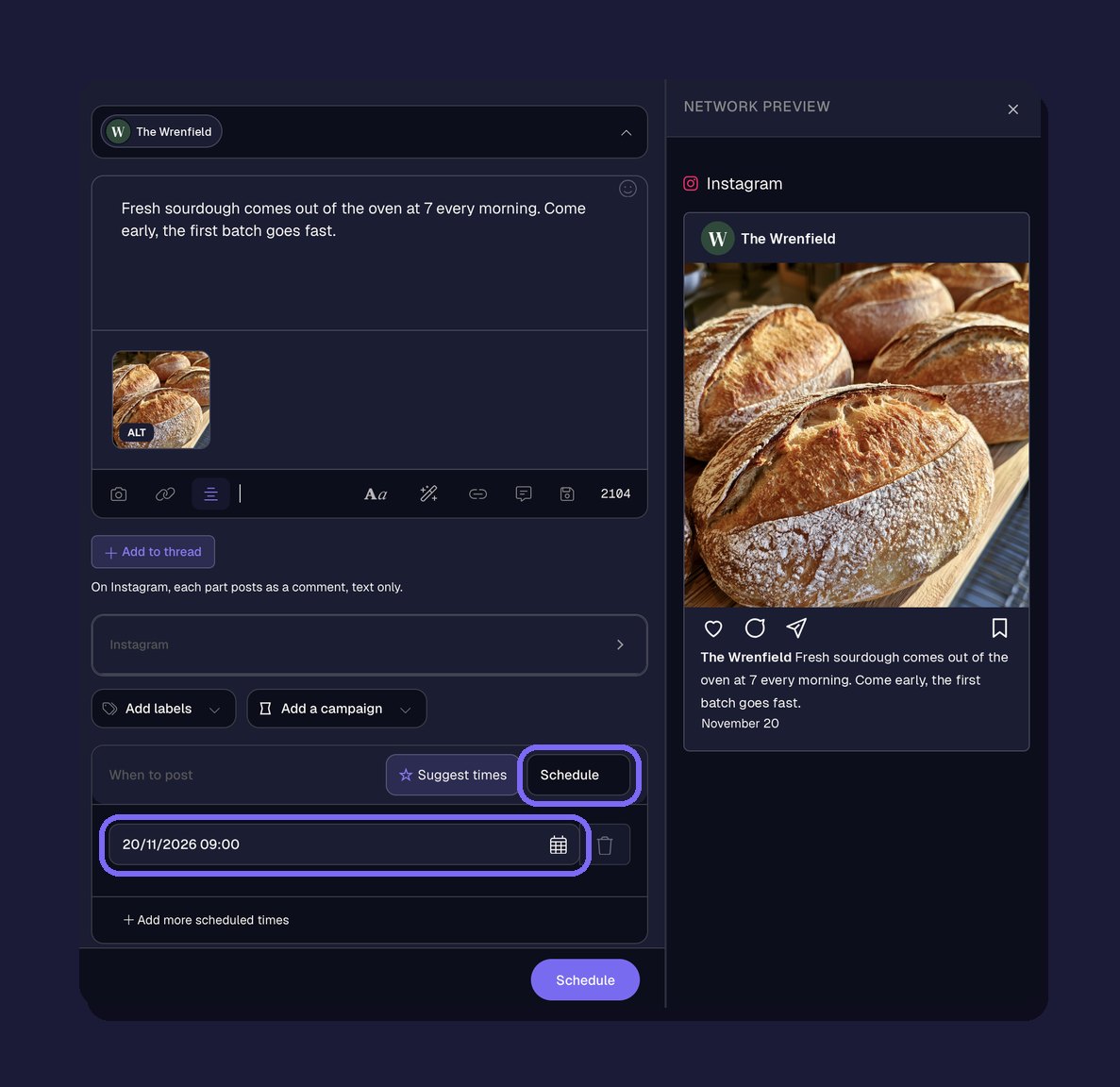
One calendar for every network. Send the same post to Facebook, X and your other channels at once. The calendar shows everything you've planned by month, by week or as a list, and you can edit any post until it goes out. To plan many posts at a time, see bulk scheduling from a CSV file.
Check the caption and image before you schedule
A scheduled post goes out without anyone looking at it, so check it beforehand. Captions can run up to 2,200 characters. In December 2025 Instagram announced a limit of five hashtags per post, which it rolled out gradually. Our guide to Instagram captions explains what makes a caption work. The Instagram line break tool keeps your spacing intact and the Instagram post size guide lists the right dimensions for each format.
Frequently asked questions
Can you schedule Instagram stories?
Yes, from a computer. In Meta Business Suite, Create story has a Schedule option with the same window of 20 minutes to 29 days. The scheduler in the Instagram app covers reels, photos and carousel posts. In sona.to, choose Stories in Post To and schedule the story like any other post.
How far in advance can you schedule Instagram posts?
Up to 30 days in the app, up to a month on instagram.com and 29 days in Meta Business Suite. With a Meta One plan (Advanced, Expert or Max), you can go up to a year (365 days).
Do I need a business account to schedule on Instagram?
Not in the Instagram app, where any public account can schedule. To post through sona.to, you need a professional account (business or creator).
Can I schedule the same post on Instagram and Facebook?
Yes. Both Meta Business Suite and sona.to can send one post to Instagram and Facebook at the time you choose. With sona.to you can also add X and your other channels.
Ready to try it?
Free to start, no credit card required.


